
Introduction
Have you ever signed up for a website, logged into an account, or left a comment online? Chances are, you used an HTML form. HTML forms are structures on a webpage that allow users to input data, which can then be sent to a server or processed locally. Forms are essential for interactive features such as user registration, login, and data submission in web applications. Any time a site asks a user to input some data, that’s a form!
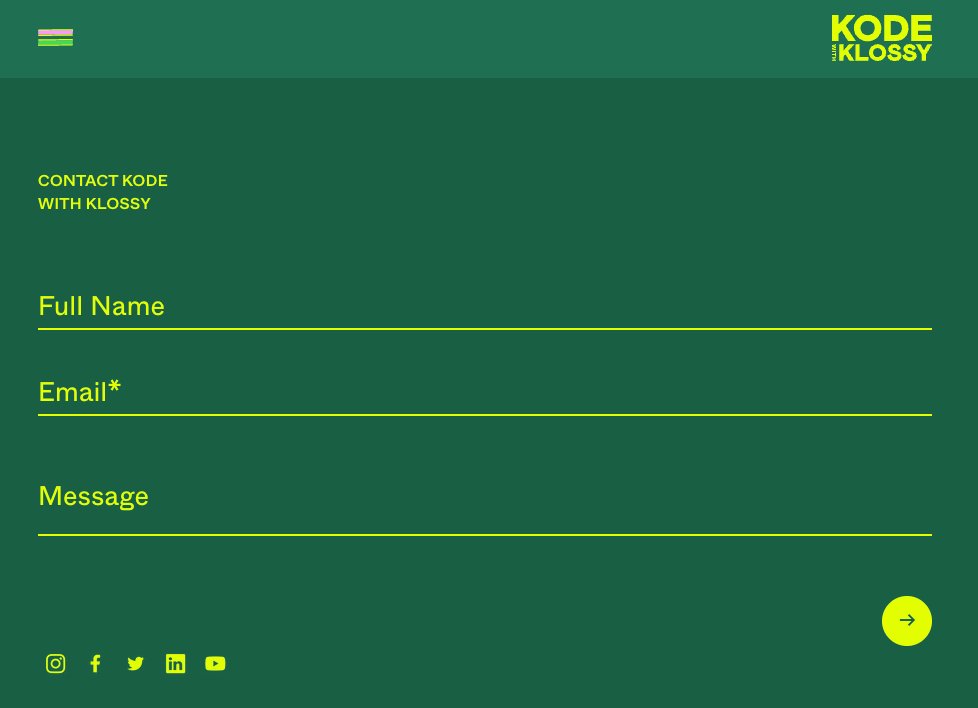
In this tutorial, we’re going to create an event RSVP form. It will include fields for full name, email, attending (select yes/no from a dropdown), and the number of guests. We will also add custom validation for each of the inputs and display a confirmation message showing the submitted details.
Note: the syntax of this tutorial could be adapted to create many other kinds of forms from a login page to email list sign up!
Step 1: Create a new CodeSandbox project
Head to codesandbox.io and create a new project using the JavaScript template. This gives you three files to start:
index.html, index.mjs, and styles.css.Step 2: Syntax for HTML Forms
Any time you want to collect information from a user on your website, you’ll use an HTML
<form> element.Quick Review
Inside the
<form>, you place elements where users can enter data. Here’s a quick look at the most common ones:<input>: The most versatile tag! You use thetypeattribute to change what kind of input it is:type="text": For short text like names.type="email": For email addresses (the browser might even check if it looks like an email!).type="password": Hides the characters as the user types.type="number": For entering numbers.type="checkbox": A box to check or uncheck.type="radio": A circle to select (usually part of a group where only one can be chosen).- And many more!
<textarea>: For longer blocks of text, like messages or comments.
<select>: Creates a dropdown list of options.
<button type="submit">: A button specifically designed to submit the form data.
Create a form for our event RSVP. include fields for full name, email, attending (select yes/no from a dropdown), and the number of guests. Also include a submit button.
Toggle for an example!
Example:
<!DOCTYPE html>
<html lang="en">
  <head>
    <meta charset="UTF-8" />
    <meta name="viewport" content="width=device-width, initial-scale=1.0" />
    <title>Event RSVP</title>
    <link rel="stylesheet" href="styles.css" />
  </head>

  <body>
    <div id="app"></div>
    <h1>Event RSVP Form</h1>
    <form id="rsvp-form" novalidate>

      <!-- Full Name Field -->
      <label for="full-name">Full Name:</label>
      <input
        type="text"
        id="full-name"
        name="full-name"
        placeholder="Your Full Name"
        required
      />

      <!-- Email Field -->
      <label for="email">Email:</label>
      <input
        type="email"
        id="email"
        name="email"
        placeholder="Your Email"
        required
      />

      <!-- Attending Field -->
      <label for="attending">Will you attend?</label>
      <select id="attending" name="attending" required>
        <option value="">Select an option</option>
        <option value="yes">Yes</option>
        <option value="no">No</option>
      </select>

      <!-- Number of Guests Field -->
      <label for="guests">Number of Guests:</label>
      <input
        type="number"
        id="guests"
        name="guests"
        placeholder="Number of Guests"
        min="0"
      />

      <!-- Submit Button -->
      <button type="submit">Submit RSVP</button>
    </form>

    <script src="index.mjs"></script>
  </body>
</html>
Notice the
<label> tag? It's important for accessibility, telling users (and screen readers) what the input field is for. The for attribute on the label should match the id attribute on the input.Why
id and name?id: This is a unique identifier for the element. We use it mainly to target the element with CSS (for styling) or JavaScript (for interactivity, likedocument.getElementById("username")).
name: This attribute is traditionally used when sending form data to a server. It tells the server what to call the piece of data coming from that input field (e.g.,username=AdaLovelace). Even if we handle the form with JavaScript first, it's good practice to include it.
Step 3: Handle Submit
You might notice that nothing happens when we click submit! Let’s change that. Before we dive in, what language do you think will be responsible for handling what happens when a form is submitted? JavaScript, because it controls any interactive components of our site!
- Navigate to your index.mjs file.
- Create a
constcalledformthat stores the element with the id ofrsvp-formso we can work with it in JavaScript.
const form = document.getElementById("rsvp-form");
- In that JavaScript file, add an event listener to listen for the
submitevent on the form. This allows you to define what happens when the user clicks the submit button.
const form = document.getElementById('rsvp-form');
form.addEventListener('submit', function(event) {
	console.log("Form submitted!");
});
- Prevent default behavior! You’ll notice that browsers have some default behaviors like refreshing the page when the user clicks submit. You may want to define different actions and this is why we use the
event.preventDefault()method. This way you can handle the form data yourself using JavaScript!
const form = document.getElementById('rsvp-form');
form.addEventListener('submit', function(event) {
    event.preventDefault();
    console.log("Form submitted!");
});
- Collect form data using the
valueproperty. Store the user input for each field in its own variable. This allows you to work with the user’s input programmatically.
const form = document.getElementById('rsvp-form');
form.addEventListener('submit', function(event) {
    event.preventDefault();
    const name = document.getElementById('full-name').value;
    const email = document.getElementById('email').value;
    const attending = document.getElementById('attending').value;
    const guests = document.getElementById('guests').value;
    console.log("Form submitted!");
});
- Do something with the data! For now, we’ll log it, so that we can see if it was collected correctly.
const form = document.getElementById('rsvp-form');
form.addEventListener('submit', function(event) {
    event.preventDefault();
    const name = document.getElementById('full-name').value;
    const email = document.getElementById('email').value;
    const attending = document.getElementById('attending').value;
    const guests = document.getElementById('guests').value;
    console.log(name, email, attending, guests);
});
When you fill out the text fields in the form and click the button, do you see the inputs logged to the console?
Step 4: Form Validation
Form validation is the process of checking user input to ensure the information a user typed is correct before it is submitted. Validation helps prevent mistakes, like forgetting to fill out a required field or entering an email without the “@” symbol. This can prevent errors, ensure data integrity, and improve the user experience by providing feedback when the input is incorrect or incomplete.
We already have some validation included on our form. What are some examples that are already included?
- The
requiredattribute ensures that the user types something in the input, but it doesn’t check for specific input.
- The
typeattribute assigned to “email” requires that the user includes the “@” symbol and some text before and after it. This is default behavior associated with the “email” type.
These are default behaviors, but in this project we're going to write our own custom validation checks instead. To do that, we've made two small additions:
- We added the
novalidateattribute on the form. This tells the browser to step aside so our custom JavaScript validation can take full control. You won't see the defaultrequiredortype="email"checks in action because of this — and that's intentional!
- We'll also add the
trim()method to the end of each variable storing the input. This ensures that trailing whitespaces are not included in the value.
Now, let's write a custom validation check!
- Declare an
isValidvariable and assign it totruein the JavaScript file. Then write a conditional statement inside our event listener to check that the user has entered a value for each of the first three inputs:
form.addEventListener("submit", function(event) {
  event.preventDefault();
  let isValid = true; // resets for each submission
  // validation checks go here...
});
- But that allows the user to type anything for the email address! We could write a simple check that looks for only the
@symbol usingincludes(), but we know that a valid email should include at least one character before the@symbol, followed by a domain name, the.character, and finally the top-level domain. To check for a complex pattern like this, it’s best to use regex!
Regex (short for Regular Expression) is like a magic formula for matching patterns in text. Think of it as a way to tell the computer exactly what kind of words, letters, or numbers you’re looking for—like spotting a valid email address or finding every word that starts with "A." It’s super handy when working with text! When you first see regex, it looks a little confusing with all the symbols.
const emailPattern = /^[^@\s]+@[^@\s]+\.[^@\s]+$/;
if (!emailPattern.test(email)) {
  alert("Please enter a valid email address.");
  isValid = false;
}
Using Regex
Ask ChatGPT to explain this regex pattern using what you already know about prompt engineering. Be prepared to share what you learn with the group!
You don’t need to know how to write regex patterns. You can use an AI tool like ChatGPT to help with that, but you’ll need to be extremely specific about what pattern you’re trying to match!
- Finally, if all of the fields are valid, we’ll alert the user that we received their message, log the values, and clear the form fields!
if (isValid) {
	alert("Thank you for your RSVP!");
  console.log(name, email, attending);
  form.reset();
}
- Test your form with different values to ensure that all of the form validation checks work as expected!
Step 5: Styling with CSS
Now that we’ve got the functionality of our random message generator working as expected, you can go ahead and style the page however you wish!
Copy these styles into your styles.css file or add your own styling
/* Page background and global font */
body {
  background-color: #007052;
  font-family: Arial, sans-serif;
  padding: 40px 20px;
}

/* Center content */
#app {
  max-width: 680px;
  margin: 0 auto;
}

/* Page title */
h1 {
  text-align: center;
  color: #e3ff00;
  margin-bottom: 24px;
}

/* Form card  */
#rsvp-form {
  background-color: #f7f5eb;
  border-radius: 16px;
  padding: 32px;

  max-width: 680px;
  margin: 0 auto;

  display: flex;
  flex-direction: column;
  gap: 16px;
}

/* Labels */
label {
  font-size: 0.95rem;
  font-weight: bold;
  color: black;
}

/* Inputs and dropdown: controls size and color of text fields */
input,
select {
  padding: 12px;
  border-radius: 10px;
  border: 1px solid #ccc;
  font-size: 0.95rem;
}

/* Submit button */
button {
  background-color: #007052;
  color: #e3ff00;
  font-size: 0.95rem;
  font-weight: bold;
  border: none;
  border-radius: 10px;
  padding: 14px;
  cursor: pointer;
  margin-top: 12px;
}

/* Hover state */
button:hover {
  background-color: #8427c9;
  color: #ff99fc;
}
You Did It! 🎉
Your form should be up and running, but this is just a starting point! Here are some ideas if you want to keep building:
- Add additional fields to the form like a phone number or a field that requires users to type a longer block of text
- Update your form to only allow users to submit the number of guests if they select the “yes” option for the attending input
- Update your form to display the confirmation message directly on the webpage instead of using an alert.
This form is yours! Make it something you’re proud of! 🥳